
Canva YouTube thumbnail, YouTube thumbnail size, thumbnail design tips, attractive YouTube thumbnails, Canva design
Canva Design: A Complete Guide for Beginners
YouTube Thumbnails in Canva Creating attractive graphics no longer requires years of professional graphic design experience. With Canva, beginners can create social media posts, presentations, YouTube thumbnails, posters, flyers, resumes, business graphics, and many other visual materials using ready-made templates and simple editing tools.
Canva design is especially useful for people who want to create professional-looking visual content quickly without learning complicated design software first.
Whether you are a student, freelancer, content creator, marketer, entrepreneur, or small business owner, learning the basics of Canva design can help you communicate ideas more effectively and build a consistent visual identity.
In this guide, you will learn what Canva design is, what you can create with it, how to design better graphics, common mistakes to avoid, and practical tips for creating professional-looking designs.
What Is Canva Design?HIDDEN SECRET
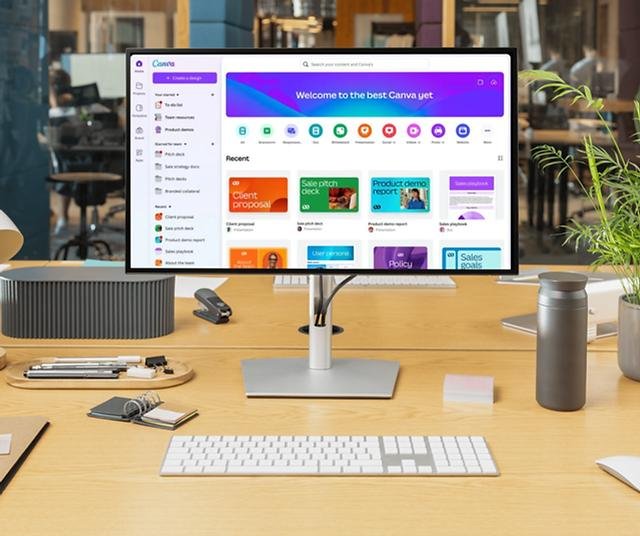
Canva design refers to creating visual content using Canva’s online design platform. The platform provides templates, fonts, graphics, photos, illustrations, layouts, and editing tools that can be combined to create different types of designs.
Unlike traditional professional design software, Canva is designed to be accessible to beginners. Users can start with a blank canvas or customize an existing template.
The important thing to remember is that using a template does not automatically make a design effective. Good Canva design still requires an understanding of layout, typography, colors, spacing, hierarchy, and visual communication.
Why Is Canva Design Popular?
One of the biggest advantages of Canva is its simplicity. A beginner can start creating designs without spending weeks learning complex software.
Some reasons people use Canva include:
- Easy-to-use editing tools
- Large selection of design templates
- Ready-made layouts and graphics
- Drag-and-drop functionality
- Social media design formats
- Presentation templates
- Marketing materials
- Brand design tools
- Collaboration features
- Designs that can be created from different devices
Canva can save time when you need to create visual content regularly. However, speed should not come at the expense of quality.
A good design should first communicate its message clearly and then use visual elements to make that message more engaging.
What Can You Create With Canva?
Canva is useful for a wide range of personal, professional, and marketing projects.
1. Social Media Posts
Businesses and creators can use Canva to create:
- Instagram posts
- Instagram Stories
- Facebook graphics
- LinkedIn posts
- Pinterest graphics
- Promotional posts
- Quote graphics
- Event announcements
The key is to maintain consistency. Using similar colors, fonts, and visual elements can make your content easier to recognize.
2. YouTube Thumbnails in canva
A YouTube thumbnail is often the first visual element a potential viewer notices.
A strong thumbnail usually has:
- A clear subject
- Short, readable text
- Strong visual hierarchy
- Relevant imagery
- Good contrast
- A design that works at small sizes
Avoid filling the entire thumbnail with text and graphics. The viewer should understand the basic idea quickly.
3. Presentations
Canva can also be used to create business presentations, educational slides, portfolios, pitch decks, and project presentations.
A professional presentation should not contain too much information on every slide.
Instead:
One slide = one main idea.
Use headings, visuals, short statements, charts, and appropriate spacing to make information easier to understand.
4. Posters and Flyers
Posters and flyers are useful for:
- Events
- Promotions
- Workshops
- Restaurants
- Retail stores
- Educational programs
- Local businesses
When designing a poster, make the most important information visually dominant.
For example, an event poster might prioritize:
EVENT NAME → DATE → LOCATION → CALL TO ACTION
Supporting information can be smaller.
6. Business Marketing Materials
Small businesses can use Canva to create:
- Business cards
- Brochures
- Menus
- Product promotions
- Advertisements
- Email graphics
- Sales presentations
- Certificates
- Promotional banners
This makes Canva particularly useful for businesses that need frequent marketing content.
How to Create a Professional Canva Design
Creating a good design does not mean adding as many elements as possible. Professional-looking designs are often effective because they are organized and intentional.
Follow this process.
Step 1: Define Your Purpose
Before opening Canva, answer one question:
What should the viewer understand or do after seeing this design?
For example:
- Buy a product
- Register for an event
- Watch a video
- Read an announcement
- Contact a business
- Learn something
- Visit a website
Your answer should influence the entire design.
Step 2: Identify Your Audience
A design for children will look different from a corporate business presentation.
Think about:
- Age group
- Interests
- Industry
- Expectations
- Communication style
Your visual style should match the audience.
Step 3: Choose the Correct Size
Select the format according to where the design will be used.
For example, a social media post, presentation, poster, and YouTube thumbnail require different dimensions.
Starting with the correct canvas size helps prevent unnecessary resizing problems later.
Step 4: Select a Suitable Template
Templates are useful starting points, especially for beginners.
Instead of choosing a template simply because it looks attractive, ask:
- Does the layout suit my message?
- Is the text easy to read?
- Can I replace the images easily?
- Does the style match my brand?
- Is there enough space for my content?
The best template is not necessarily the most colorful one. It is the one that supports your message.
Step 5: Choose a Color Palette
Try to avoid using too many unrelated colors.
A simple color system can make a design look more professional.
For example, you might use:
- One primary color
- One secondary color
- A neutral background
- One accent color
Colors should also provide enough contrast between text and background.
Step 6: Select Your Fonts
Typography plays a major role in Canva design.
A simple approach is to use different font roles:
Heading: Strong and noticeable
Subheading: Supporting information
Body: Simple and readable
You do not need many fonts. In many designs, two complementary typefaces are enough.
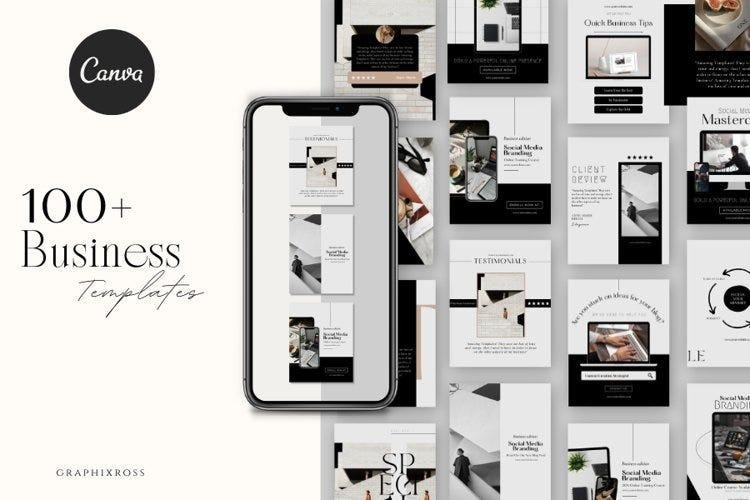
Step 7: Create Visual Hierarchy
Visual hierarchy tells the viewer what to look at first, second, and third.
You can create hierarchy through:
- Font size
- Font weight
- Position
- Contrast
- Color
- Spacing
- Images
For example, if the main headline is smaller than secondary information, the viewer may not understand what is most important.
Step 8: Add Images Carefully
Images can make a design more engaging, but they should support the message rather than distract from it.
Choose images that are:
- Relevant
- Clear
- High quality
- Appropriate for the audience
- Consistent with the overall style
Avoid using random stock images simply to fill empty space.
Step 9: Use White Space
White space is the empty area around text, images, and other design elements.
It does not mean your design is incomplete.
White space can:
- Improve readability
- Separate sections
- Reduce visual clutter
- Make important elements stand out
- Give the design a cleaner appearance
One of the most common beginner mistakes is trying to fill every empty area.
Step 10: Review Before Publishing
Before downloading your design, check:
- Spelling
- Alignment
- Font consistency
- Image quality
- Text readability
- Color contrast
- Margins
- Contact information
- Call-to-action
- Overall balance
If possible, view the design at the size your audience will actually see it.
7 Canva Design Principles Beginners Should Learn
1. Keep It Simple
A simple design is often easier to understand than a complicated one.
Ask yourself whether every element has a purpose. If an icon, image, line, or piece of text does not contribute to the message, consider removing it.
2. Use Alignment
Alignment creates structure.
Make sure text boxes, images, icons, and other elements follow a logical visual arrangement.
Poor alignment can make an otherwise attractive design look unfinished.
3. Maintain Consistency
Consistency is particularly important for businesses.
Use consistent:
- Colors
- Fonts
- Logo placement
- Image style
- Shapes
- Design patterns
This helps create a recognizable visual identity.
4. Create Contrast
Contrast helps important information stand out.
You can create contrast using differences in:
- Size
- Color
- Weight
- Shape
- Position
For example, a bold headline against a simple background can immediately attract attention.
5. Establish Hierarchy
Not every piece of information should have the same visual importance.
Decide what viewers need to see first and design around that priority.
6. Use Repetition
Repeating visual elements creates consistency.
For example, a social media series might use the same headline style, brand colors, and graphic elements across multiple posts.
7. Balance the Layout
Balance refers to how visual weight is distributed throughout the design.
A large image on one side may need smaller supporting elements on the other side to prevent the layout from feeling visually heavy.
Canva Design Tips for Beginners
If you are just starting, these practical tips can improve your designs quickly.reating a YouTube thumbnail in Canva is an easy and creative way to make your videos attractive. Canva provides many ready-made templates, images, fonts, colors, and design elements that help beginners create professional thumbnails. Start by selecting a YouTube thumbnail template and choose a design that matches your video topic. Add a clear and interesting title using bold fonts. Use bright colors and high-quality images to catch viewers’ attention. Keep the design simple and avoid adding too much text. You can also add shapes, icons, and effects to make the thumbnail more engaging. Finally, download your thumbnail and upload it to YouTube.
Start With One Clear Message
Do not try to communicate five different ideas in one graphic.
Choose one primary message and make it prominent.
Use Fewer Elements
More elements do not necessarily mean a better design.
Start with the essentials and add elements only when they improve communication.
Make Text Easy to Read
Always consider where your design will be viewed.
Small text that looks fine on a large computer monitor may be difficult to read on a smartphone.
Don’t Overuse Effects
Shadows, gradients, outlines, animations, and decorative effects can be useful, but excessive effects can make a design look cluttered.
Use them with a purpose.
Use High-Quality Visuals
Blurry or poorly cropped images can reduce the professional appearance of your design.
Choose suitable images and check how they look after resizing.
Design for Mobile When Appropriate
A significant amount of online content is viewed on mobile devices.
If you are designing social media graphics, test whether the text remains readable on a smaller screen.
Common Canva Design Mistakes
Even with good templates, beginners can make design mistakes.
Too Much Text
A graphic should not look like a full article.
If the audience needs extensive information, consider using a carousel, presentation, webpage, or document instead.
Too Many Fonts
Using several unrelated fonts can make a design look inconsistent.
Limit your font choices and establish a clear hierarchy.
Poor Color Contrast
Text that blends into the background is difficult to read.reating a YouTube thumbnail in Canva is an easy and creative way to make your videos attractive. Canva provides many ready-made templates, images, fonts, colors, and design elements that help beginners create professional thumbnails. Start by selecting a YouTube thumbnail template and choose a design that matches your video topic. Add a clear and interesting title using bold fonts. Use bright colors and high-quality images to catch viewers’ attention. Keep the design simple and avoid adding too much text. You can also add shapes, icons, and effects to make the thumbnail more engaging. Finally, download your thumbnail and upload it to YouTube.
Always check whether important information is clearly visible.
Ignoring Margins
Elements placed too close to the edge can make the design feel cramped.
Leave appropriate space around important content.
Copying Templates Without Customization
Templates are starting points, not finished solutions.
Customize the layout, colors, imagery, typography, and messaging so that the final design fits your purpose.
Inconsistent Branding
If every social media graphic uses different colors and fonts, your audience may struggle to recognize your brand.
Create a repeatable visual system.
Canva Design for Businesses
For businesses, Canva can become more than a simple graphic creation tool.
A company can develop a basic visual system that defines:
- Brand colors
- Typography
- Logo usage
- Image style
- Graphic elements
- Social media layouts
- Presentation style
Once these guidelines are established, creating new marketing materials becomes more consistent.
For example, a digital marketing agency could use one visual style for Instagram posts, another layout for case studies, and a consistent presentation format for client proposals while keeping the same brand colors and typography.
This creates a stronger overall brand experience.
How Canva Design Can Support Social Media Marketing
Visual content plays an important role in social media communication.
Canva can help marketers create content such as:
- Educational graphics
- Promotional posts
- Customer testimonials
- Product announcements
- Infographics
- Quotes
- Reels covers
- Story graphics
- Carousel posts
However, design is only one part of successful social media marketing.
A good visual should work together with a useful message, appropriate caption, clear call-to-action, and platform-specific strategy.
Canva Design vs. Traditional Graphic Design Software
Canva and professional graphic design applications serve different needs.
Canva is particularly convenient when you need:
- Fast content creation
- Templates
- Simple editing
- Marketing graphics
- Social media content
- Team collaboration
More advanced design software may be preferable when you need highly detailed illustration, advanced image manipulation, complex vector work, or specialized professional workflows.
The right tool depends on the project.
For many everyday marketing and content tasks, Canva can provide a practical balance between ease of use and design flexibility.
How to Improve Your Canva Design Skills
The fastest way to improve is not simply creating more designs. It is studying why good designs work.
Try this process:
- ercial use. Use examples as references for learning principles such as hierarchy, balance, spacing, and composition.
Frequently Asked Questions About Canva Design UNBELIEVABLE
Is Canva good for beginners?
Yes. Canva is designed to make visual content creation accessible to people with different levels of design experience. Beginners can start with templates and gradually learn fundamental design principles.
Can I use Canva for business design?
Yes. Businesses can use Canva for many types of marketing and communication materials, including social media graphics, presentations, flyers, posters, and promotional content. Always check the applicable licensing terms for specific assets and intended uses.
What is the most important Canva design tip?
Focus on communication before decoration. Decide what the viewer needs to understand and make that message the strongest visual element.
How many fonts should I use in a Canva design?
There is no universal rule, but beginners will often get better results by limiting the number of typefaces and establishing a clear hierarchy between headings and supporting text.
How do I make a Canva design look professional?
Use a clear layout, consistent typography, appropriate colors, good-quality images, sufficient white space, strong alignment, and a clear visual hierarchy.
Is Canva enough to learn graphic design?
Canva is a useful tool for learning and practicing many design fundamentals, but graphic design is a broader discipline. Learning principles such as typography, composition, color, branding, accessibility, and visual communication will help you regardless of which design software you use.
Final Thoughts
Canva design makes visual content creation more accessible, but professional-looking results come from more than simply choosing an attractive template.
The strongest designs start with a clear purpose. They use typography, color, images, spacing, alignment, and hierarchy to guide the viewer toward the most important information.
If you are a beginner, start small. Create social media posts, presentations, thumbnails, posters, or simple marketing graphics. Review your work, learn from strong examples, and gradually develop your own design style.
Most importantly, remember that good design is not about adding more—it is about communicating better.